With the use of AI maybe it is useful to start a thread about useful tips on how to use it to get the best out of it and to help you to elevate your idea.
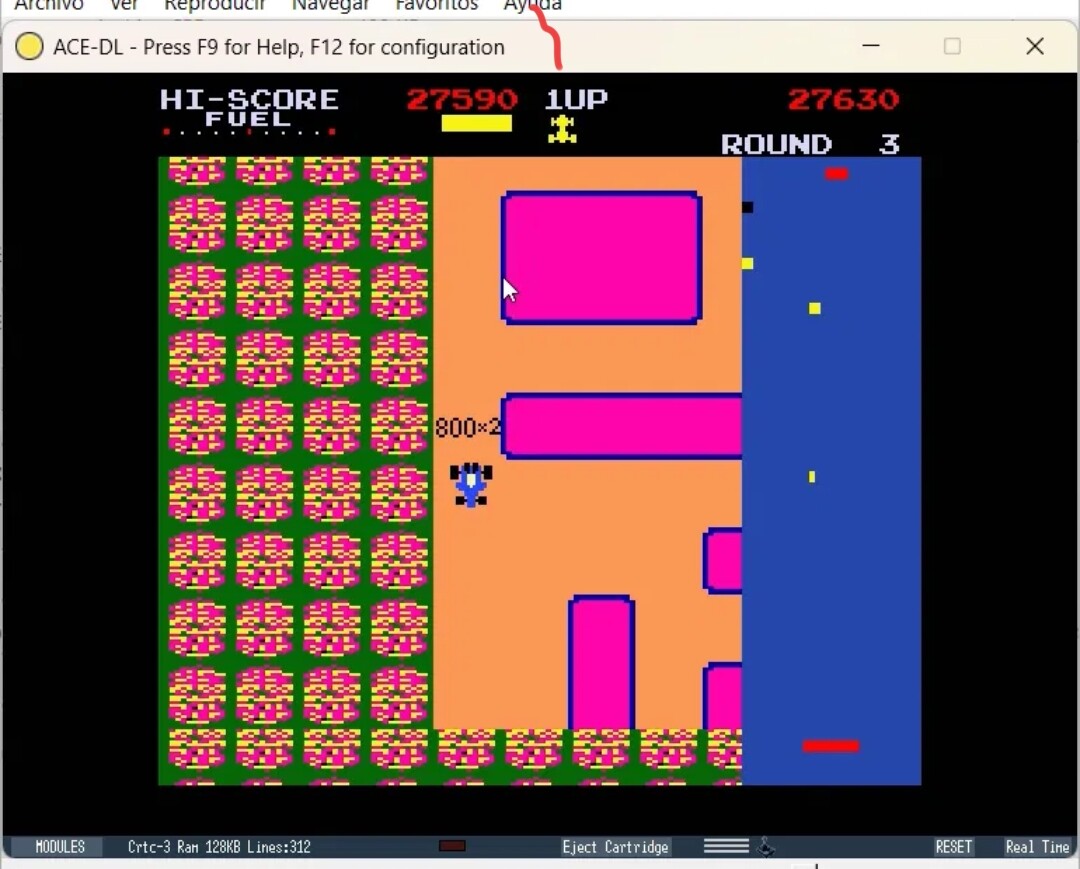
If you have a visual bug then take a screenshot. In paint or other art package draw a rectangular box of a colour of your choice around the problem.
Then drop and drop the image into the AI chat window, or if using command-line, save it in a location it can read (same place as your files), give it the filename of the image.
In the prompt example if I used a red rectangle: "There is a bug, I provide a screenshot and I have drawn around the problem with a red rectangle. Investigate.’
If the AI can launch, run and debug an emulator this can work well because it can iterate on the problem. If it can’t it may choose to do so in other ways but often it’ll find the issue and fix it. It may guess and attempt a fix. You will need to run the game and check.
Be aware however by fixing that it has the potential to break something else so you will need to check.
If you have lots of flicker then tell the AI to use ‘hardware double buffer’ but also tell it be mindful to ensure ‘there are no trails or graphical glitches from the sprites’.
Double buffer works by drawing to a screen we don’t see while we seen another then swapping over once drawing is done, because the screen is presented in one go this takes away the flicker but it will cost memory for that extra screen. When hardware scrolling is used expect it to use an additional 16KB over single buffering.
If you are seeing slowdown then tell the AI that you don’t want the game to slow down and to maintain a particular frame rate. (e.g. ‘the game is slowing down when there are many sprites on screen. What can I do?’ or ‘the game is slowing down when there are many sprites on screen. Maintain 25fps. Give me options.’
It may offer suggestions on how to do that, less on screen, different methods for drawing to optimise. You will need to decide what you want.
try to gather as much documentation about various techniques as you can, and tell the AI to use it as a source of truth.. LLMs are actually quite dumb, but with the right documentation they can really shine..
This is fantastic. Artifacts aren’t interesting anymore (i.e. the ones you get simply from asking a model to do it) - tell us how you use the models instead, leave making the binaries as an exercise for the reader!
Tell the AI to stick to the task you have asked for.
Break down your project into small tasks, and then break those tasks down into even smaller tasks.
Ask the AI to work on those smaller tasks only, and to not deviate from what you have asked for.
Ask it to stay on target, and don’t investigate things you haven’t asked for.
Otherwise your prompts may take a long time to get responses, and you will burn through tokens much faster.
The AI will typically offer different options for what to work on next. Consider the options carefully, and choose the one you think is most appropriate. The AI will offer advice or recommendations, and that’s ok. The important thing is that it sticks to the choice you make, and doesn’t waste time and tokens “going down the rabbit hole”.
make a MEMORY.md file in the workspace that contains all your rules for the project
fill it with things like “Wants ASD-STE100 Simplified Technical English standard used when writing docs, comments, or responses”, coding styles and preferences (eg always comment code), and hard rules like telling it to use a certain folder for scratch work, or to never delete any files unless specifically asked to..
Ace-dl have worked, unfortunly in my case don’t have worked for the problem I have.
Claude can’t view the problem even with the emulador, he try to adivinate whats happend, and made patchs and patchs but none working. It view the fault in the videos i send It but thats all he can’t simulate the problem even if use the ace-dl
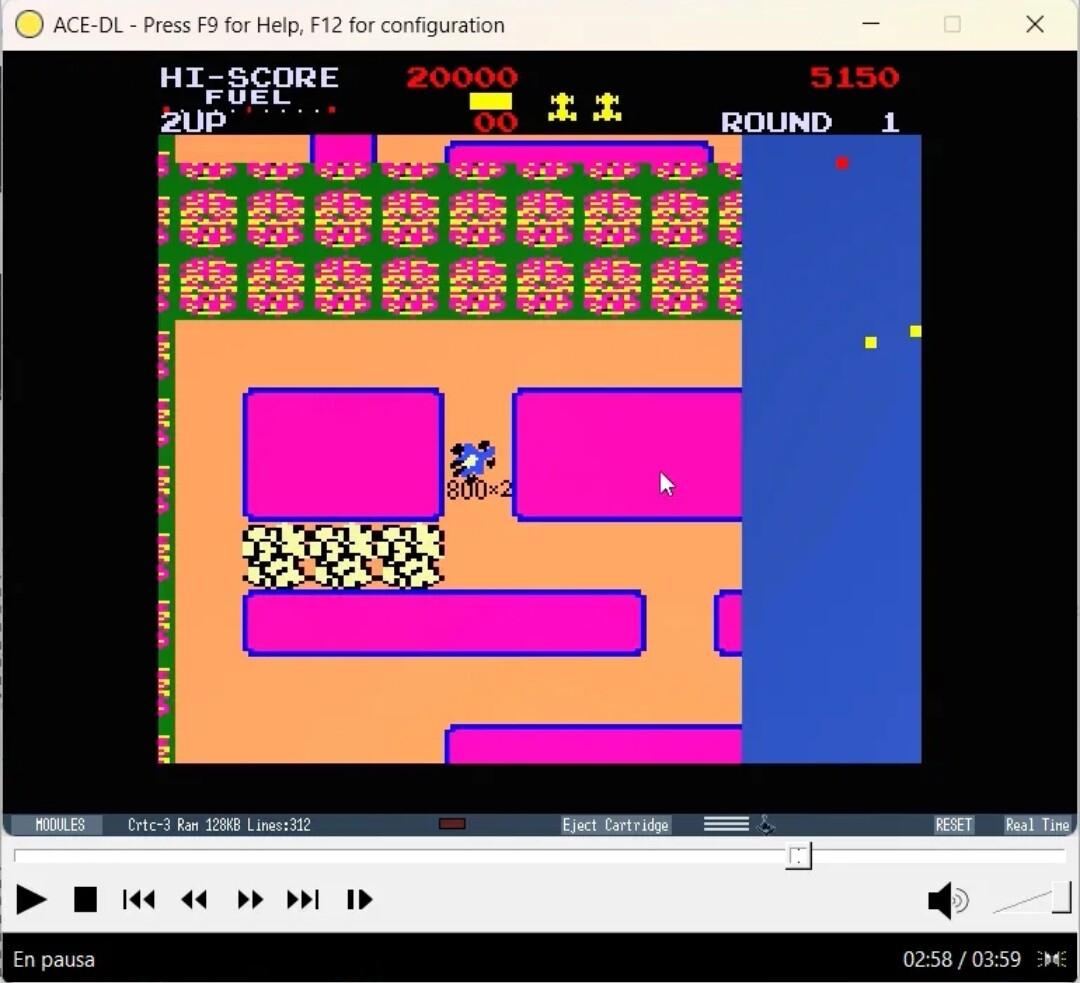
My problem its the game is draw bad ocasionally a line in the top borders. Not sure why.
Oh… You shouldn’t have told this. It’s always funnier when they find it by themselves
My 2 cents since I have started some code generation at work:
Totally agree about small identified tasks. If you know how to code and you can check (code or output) what AI is doing, it’s better. I often have to remember him to stick to specifications…
Also your IDE will provide before AI modification / with modification for review. The smaller the better.
For optimization of assembly code, I think it should be trained a bit more… For moving bits around, like: 'best way to translate a PEN color (0…15) to Screen octet Subpixel 0. My AI didn’t use Carry Flag at all to decrease number of needed rotation and shifts. So I ended up doing it myself… A shame isn’t it?
If you select a sub part to optimize, tell him which register he has access to or he can push/pop if it performs better.
If using Claude CLI or maybe from chat, use ‘compact’ regularly. It costs tokens but it can extend a session for longer.
Also, feel free to keep the AI’s mind ‘fresh’. Tell it to ‘write me a handover document to give to another instance’, then open a new chat window or cli window, and in there ‘continue from the hand over document’. It will start with a clearer memory and can be better at solving the problem rather than when it gets near end of a context.
Oh and finally, just because an AI recommends not do anything, you are in control, question it, it is just being lazy!
Quite often it will happen if changing direction, scroll down and next frame scroll up, or scroll right and next frame scroll left etc. Perhaps more so when the scroll is going to next char line/char column. The AI needs to redraw in the correct place and is getting it wrong! Classic bug.